RecordFab Quick Start
Welcome to RecordFab, a software designed for high-quality video recording. This guide will help you get started quickly and complete video recording and management with ease.
1. Download and Installation
- Visit the official website or download center, and download the version for your operating system.
- Choose either Online Installation (automatically downloads the required components) or Offline Installation (a full installer that does not require an internet connection).
- Tip: During installation, ensure a stable network connection (for online installation) and close any software that may block the installation.
2. First Launch and Authorization
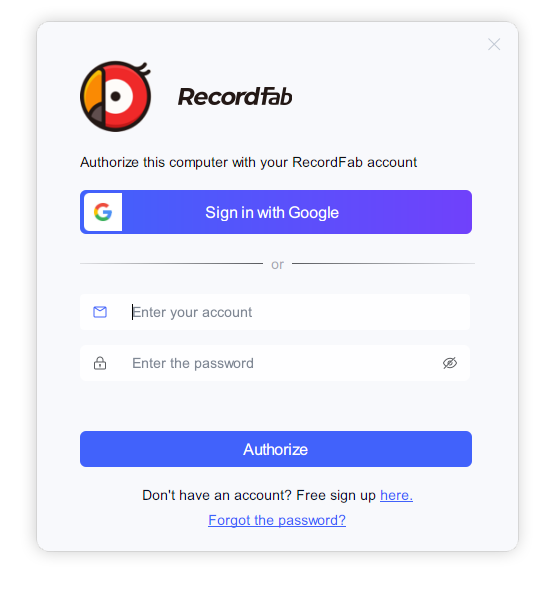
- Launch the software, click the menu in the upper-right corner, and select "Authorize".
- Enter your account email address and password to complete online authorization.
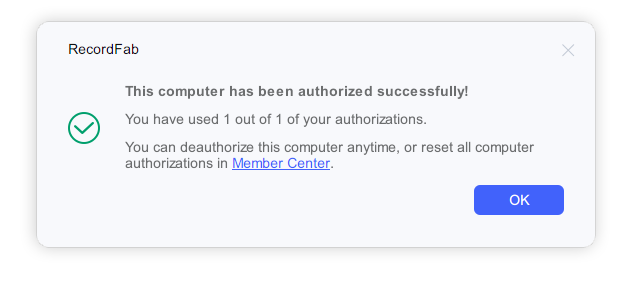
- After authorization, you can access all features included in the modules you purchased.
- If you need to remove the authorization from the current device, use "Cancel Authorization".
3. Adjust preference settings
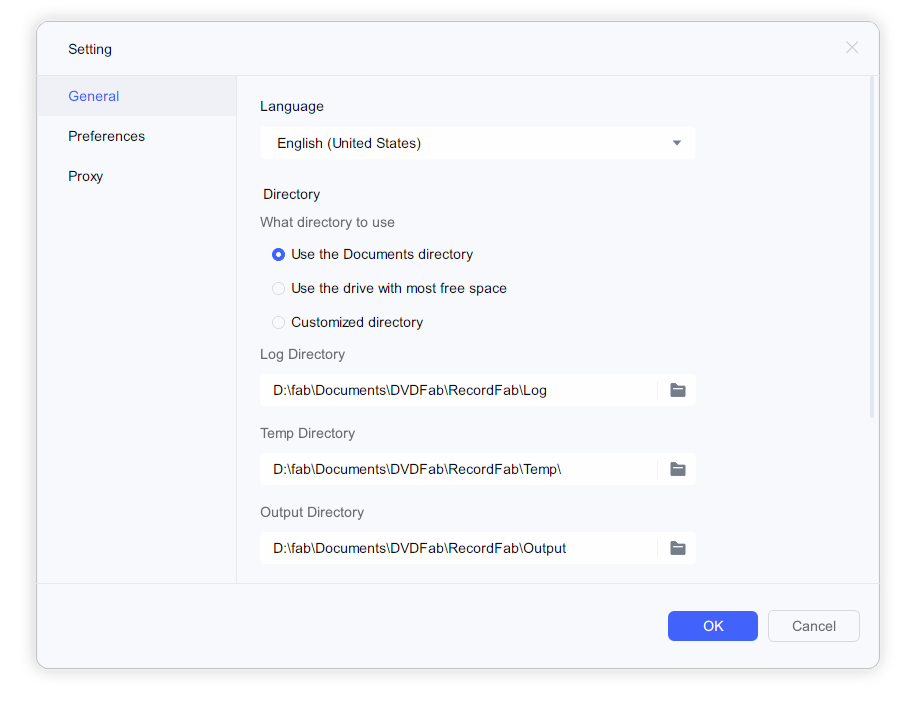
Use the "Settings" menu to adjust the language, recording resolution, recording speed, save path, and more.
4. Record Videos
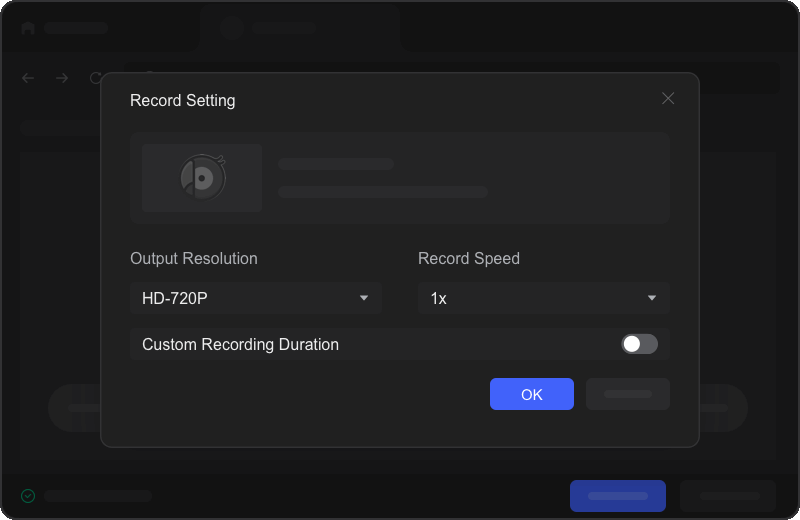
- Open the website you want to record in RecordFab’s built-in browser and sign in.
- Play the target video, then click "Start Recording" to begin.
- During recording, you can pause or stop the recording as needed.
- When recording ends, the video will be saved automatically to the preset folder.
5. Manage recorded files
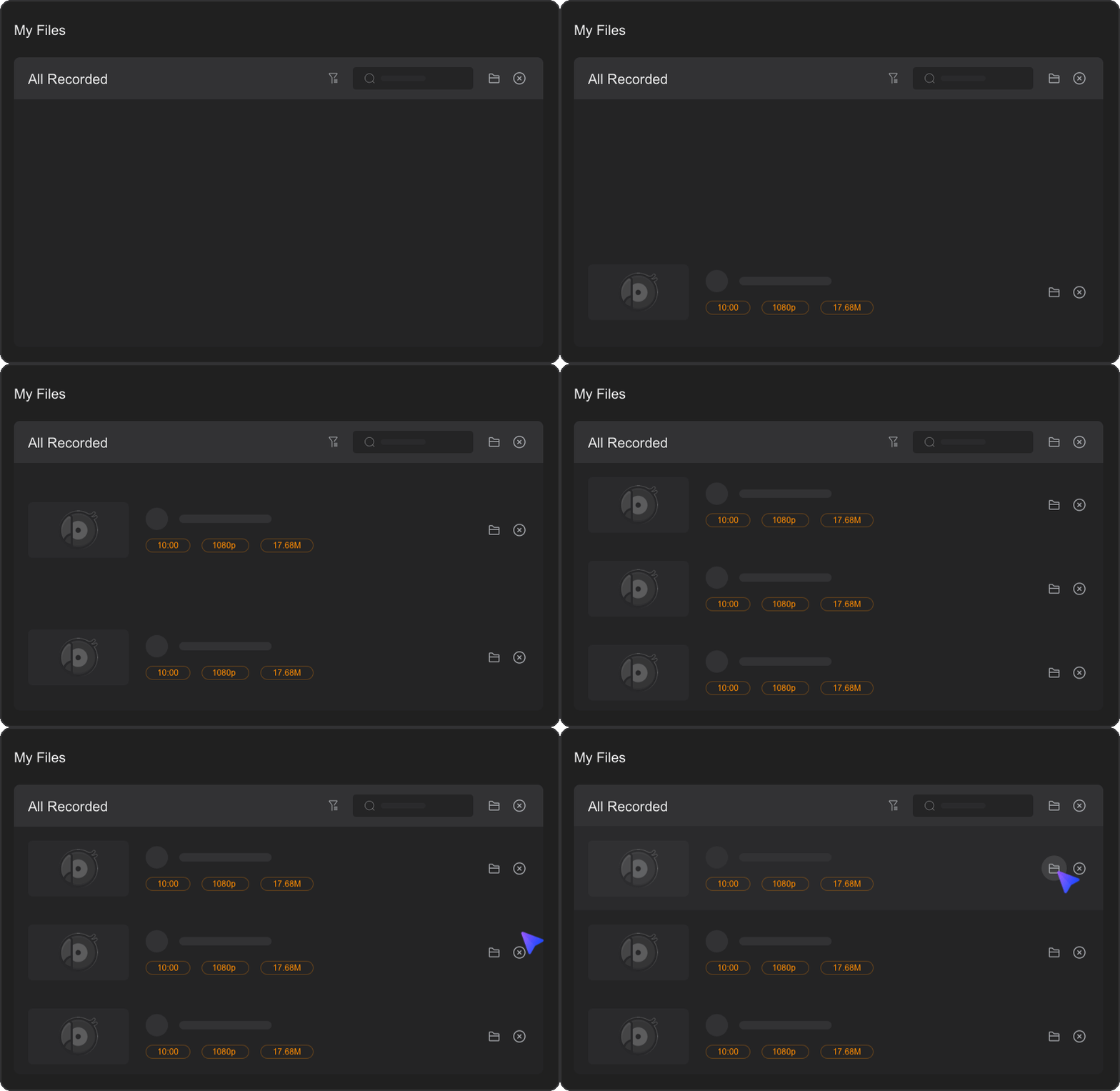
In the "My Files" section of the main interface, you can view and manage all recorded videos.
By following the steps above, you can start using RecordFab quickly and record high-quality videos with ease. Enjoy recording!